![LOGO LEXISNEXIS.png]](https://help.henchman.io/hs-fs/hubfs/LOGO%20LEXISNEXIS.png?height=40&name=LOGO%20LEXISNEXIS.png)
There are various reasons why you can't find the Lexis® Create DMS add-in. Here are a few things you can check to resolve this issue.
1. The Lexis® Create DMS disappeared from the Home tab
To troubleshoot this, follow the below steps:
- In your MS Word document go the Insert tab and click Get Add-ins
- Navigate to Admin managed
- Select Lexis® Create DMS and click on Add
- Can’t find Lexis® Create DMS? Continue reading
2. Add-in is not yet installed
It is possible that you received an invitation to Lexis® Create DMS but the add-in might not be installed by your Microsoft administrator yet. Reach out to your Microsoft administrator and ask them to centrally deploy the add-in by referring to the instructions in this article. Unable to centrally deploy the add-in? Download the Lexis® Create DMS add-in yourself
3. You are working in an old Microsoft Word document
Check the format of your document, is it Word 97-2004 Document (.doc) or an older version? If so, you should convert your current Microsoft Word document to the .docx format. Here's a guide on converting a .doc document to a .docx.
- Open the .doc document using Microsoft Word.
- Click the File tab followed by Save As from the left-hand menu.
- Choose a recent location or select an alternative location by clicking 'Browse'.
- Enter a file name in the File name field.
- From the Save as type dropdown, ensure 'Word Document (*.docx)' is selected.
- Click Save to confirm
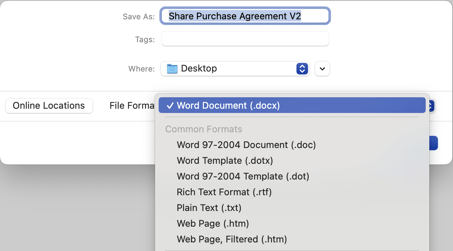
If you have saved the new document in the same location as the .doc document, note that the file extensions and icons will be different. The .docx document will also be smaller in size.