![LOGO LEXISNEXIS.png]](https://help.henchman.io/hs-fs/hubfs/LOGO%20LEXISNEXIS.png?height=40&name=LOGO%20LEXISNEXIS.png)
There are various reasons why you might have a problem downloading the Lexis® Create DMS Word add-in. Here are a few things you can check to resolve this issue.
1. You are using an old version of Microsoft Word
Before installing the Lexis® Create DMS Add-In, please note that it requires the most up-to-date version of Microsoft Word 2016 or newer and an active internet connection.
- To check for Word updates on Windows, go to File > Account > Update Options and click Update Now. Install any updates that are available.
- To check for Word updates on Mac go to the Help menu, click on Check for Update and install any updates that are available.
Once you have done this, you should be able to download Lexis® Create DMS in the Word add-in store.
2. Unable to download Lexis® Create DMS in the office add-in store?
It is possible that you have no permission to download add-ins from the store. There are 2 ways to resolve this:
Option 1: log out of Microsoft Word, download the add-in and log back in. This article describes how you can individually download Lexis® Create DMS into Word.
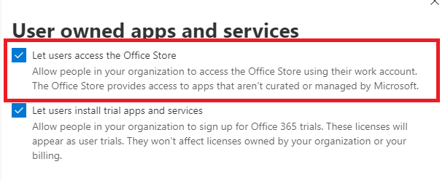
Option 2: contact your Office 365 administrator and request add-in access. This is a setting that they can enable or disable by following the instructions below
- In the admin centre, go to Settings > Org settings
- Select User owned apps and services
- Check the option to allow users access to the Office store
3. Problems with the VSTO add-in installer
Are you experiencing issues with the VSTO add-in installer? Read the article I have problems with the VSTO add-in installer to resolve this issue.