![LOGO LEXISNEXIS.png]](https://help.henchman.io/hs-fs/hubfs/LOGO%20LEXISNEXIS.png?height=40&name=LOGO%20LEXISNEXIS.png)
Enabling the iManage refresh token
In iManage older versions, the Refresh token needs to be enabled through the API.
From the following iManage help article: https://help.imanage.com/hc/en-us/community/posts/360034796653-Rest-API-refresh-token-empty
The refresh token can be enabled for a registered application by making the following REST call with an admin token:
PUT
https://{server}/api/v2/customers/1/settings/{clientid}/oauth2.tokens

Payload:
{
"type": "value",
"value":
{
"allow_refresh_token": true,
"refresh_token_expiry": 14,
"access_token_max_idle_time": 30
}
}
URL
Base URL should be a valid URL
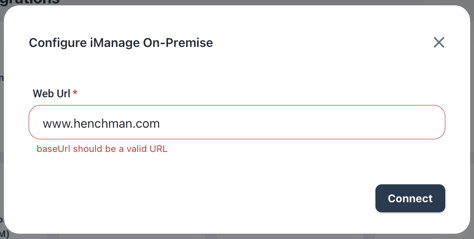
- URL should start with https://
- Please check if there aren't any unnecessary suffixes to the URL like /login or other. We only need the BASE url. We can only work with the base URL because we need to redirect to the right place.
- Make sure our IP addresses are whitelisted in case your URL is not publicly accessible. If this is not the case, we will not be able to connect to your iManage on-Premise server.
HTTPS certificate issues
Ensure the following requirements are taken into account for the https certificate:-
- Signed by a recognized certificate authority. The certificate chain must contain a root certificate from an established root CA (= Certificate Authority).
- Ensure the full certificate chain is returned by your server. In most cases this translates to returning the following:
- the server certificate
- the intermediate CA certificate
- and the root CA certificate
- You can use the following command to check the validity:
openssl s_client -verify_return_error -connect <host>:<port>
Redirect Issues
If your iManage instance is linked to an external SSO provider like Azure AD or Okta, it is important that the base URL of your iManage instance in Lexis® Create DMS is the same as the redirect url in your SSO provider.
This can be resolved by entering the Internal URL for OAuth authentication in Step 1 of setting up the connection.