![LOGO LEXISNEXIS.png]](https://help.henchman.io/hs-fs/hubfs/LOGO%20LEXISNEXIS.png?height=40&name=LOGO%20LEXISNEXIS.png)
Getting started with Lexis® Create DMS is very easy, let's start with the basics: searching, filtering and comparing clauses/definitions.
SEARCH
With the help of Lexis® Create DMS, you can easily find clauses/definitions from previously written contracts or templates in your firm's database. There are two ways to start searching: Exact search and Similar search
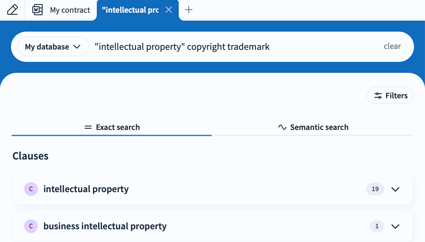
(1) Exact search
- Search for clauses/definitions by typing keywords in the search bar
- Add multiple terms in one search
- Use quotation marks [“...”] to indicate if keywords need to appear in a specific order
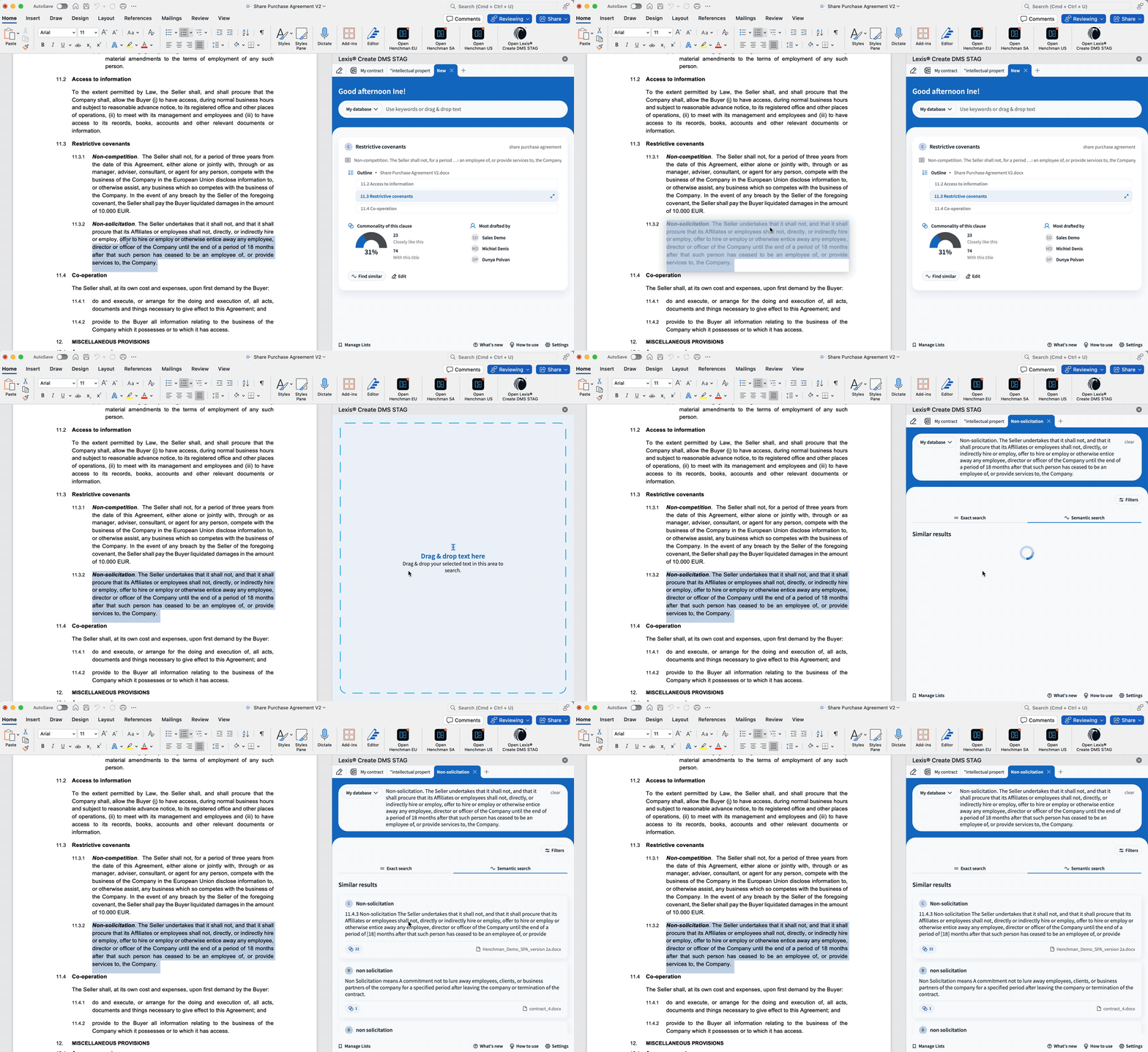
(2) Similar search
- Another way to search for inspiration is by copying and pasting clauses/definitions from your working document into the Lexis® Create DMS add-in.
- Based on semantics Lexis® Create DMS pulls up relevant variations of the selected text as found in your database.
FILTER
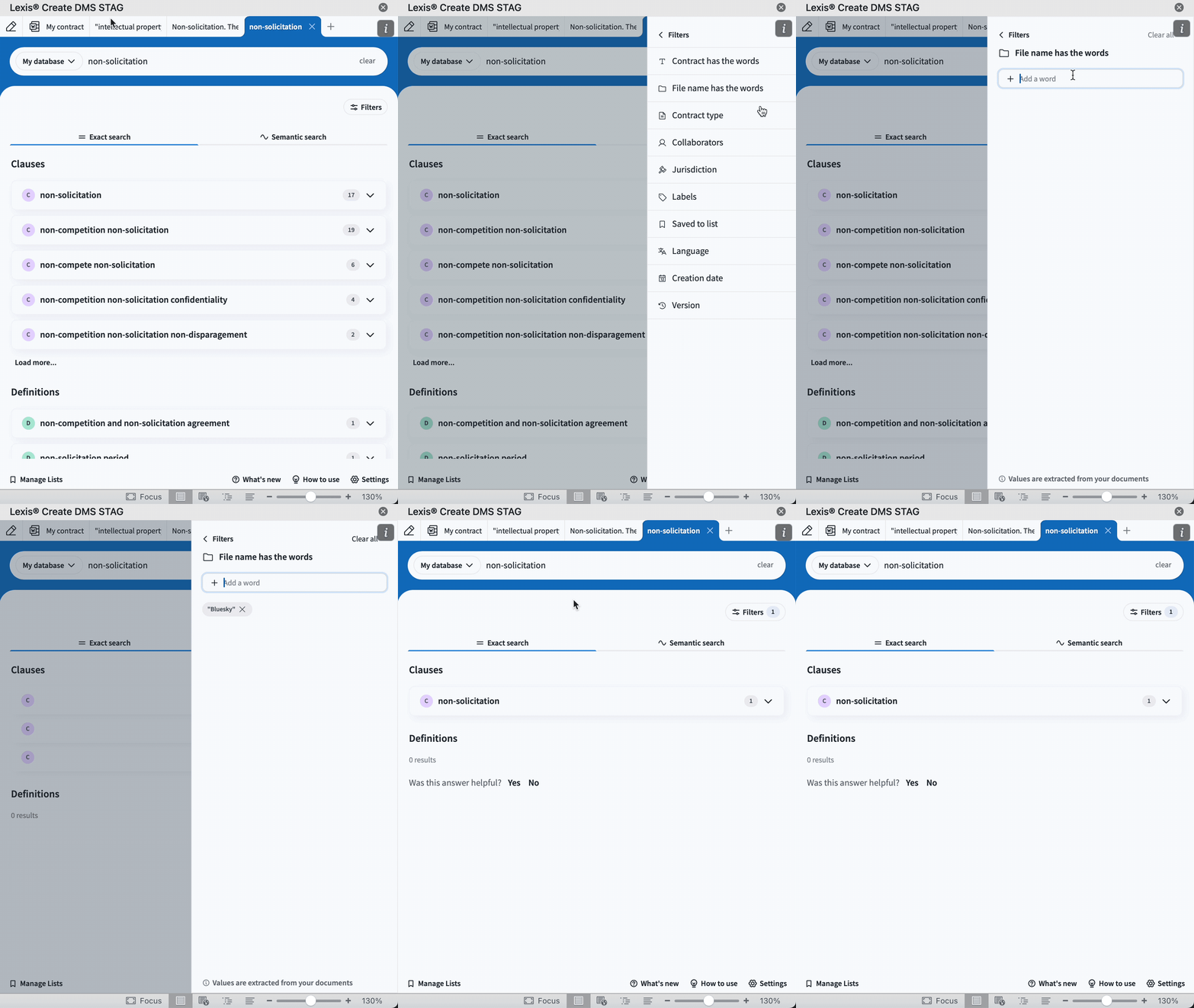
Looking for a specific clause/definition? Add more context to your search with the use of filters and find that needle in a haystack.
Narrow down the results with a combination of multiple filters:- Types of result: only show clauses or definitions
- Contract Type, Jurisdiction, Collaborator (person who created or modified the contract), Language, Creation date, Contract has the words, File name has the words
- Labels: add if you only want to view clauses/definitions with a specific label attached
- Saved to list: use if you only want to search from clauses/definitions that are bookmarked
💡 Tip: did you try to find a clause/definition but can't find it?
- Read our tips and tricks article
- Or join one of our online training sessions where we share best practices and provide insights into how other legal professionals use Lexis® Create DMS.
COMPARE
Let’s take it a step further. You found an interesting clause but want to understand how it differs from the clause in your working document? Or are you looking for potential gaps?
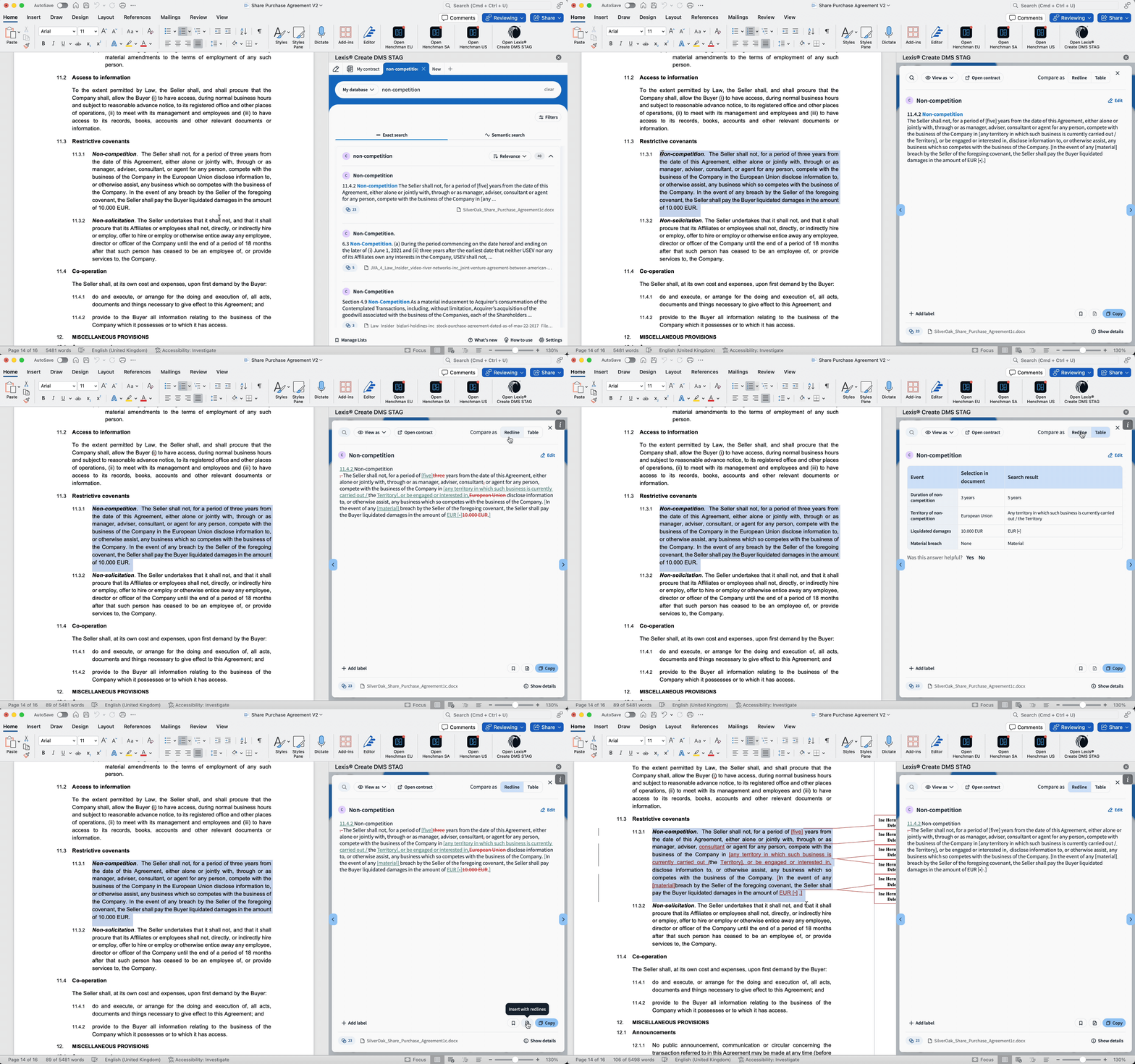
With the compare functionality, you can easily highlight the key differences between both clauses.
- Open a clause/definition in the Lexis® Create DMS add-in
- Select the clause/definition you are working on
- Toggle on compare as (1) Redline for a word-by-word analysis or as (2) Table for highlighting key differences
COPY TO YOUR DOCUMENT
Found what you were looking for, and want to paste the wording in your document?
(1) CopyUse the copy button if you want to copy the full clause/definition or select the relevant part and paste it into your document
(2) Insert with redlines
If the clause/definition found in Lexis® Create DMS only has minor changes to the clause/definition in your document, use insert with redlines to only copy in the differences.