![LOGO LEXISNEXIS.png]](https://help.henchman.io/hs-fs/hubfs/LOGO%20LEXISNEXIS.png?height=40&name=LOGO%20LEXISNEXIS.png)
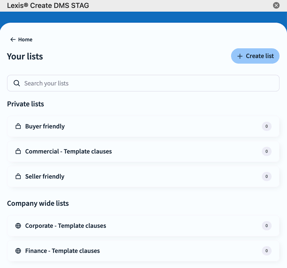
‘Lists’ allow you to quickly retrieve your favourite clauses and definitions when you need them again. Save clauses to a specific list, define the name of your lists and decide if you want them to be publicly accessible or only visible to you.
Some examples
- A selection of clauses that a share purchase agreement always contains: this is a starting point when drafting a new SPA.
- When receiving a contract from a counterparty you could quickly go to your saved list and see if all standard clauses are present.
Permissions
There are two kinds of lists
- Private lists are only accessible to you, no one else within your organization will be able to view, edit or delete this list.
- Company-wide lists can be viewed by everyone within your company. Everyone will be able to open this list and paste its clauses or definitions into their document. Do take into account below permissions for the creation and editing of company-wide lists
- An Administrator or Editor can create a new company list and assign or remove clauses/definitions to those lists.
-
- Viewers can only view the lists and copy-paste clauses/definitions into their document.
- Unable create or edit lists? Reach out to your Lexis® Create administrator so they can grant you access.
- As an administrator, you have the ability to change the roles of end-users. Please read this article to learn how.
How to compile a list
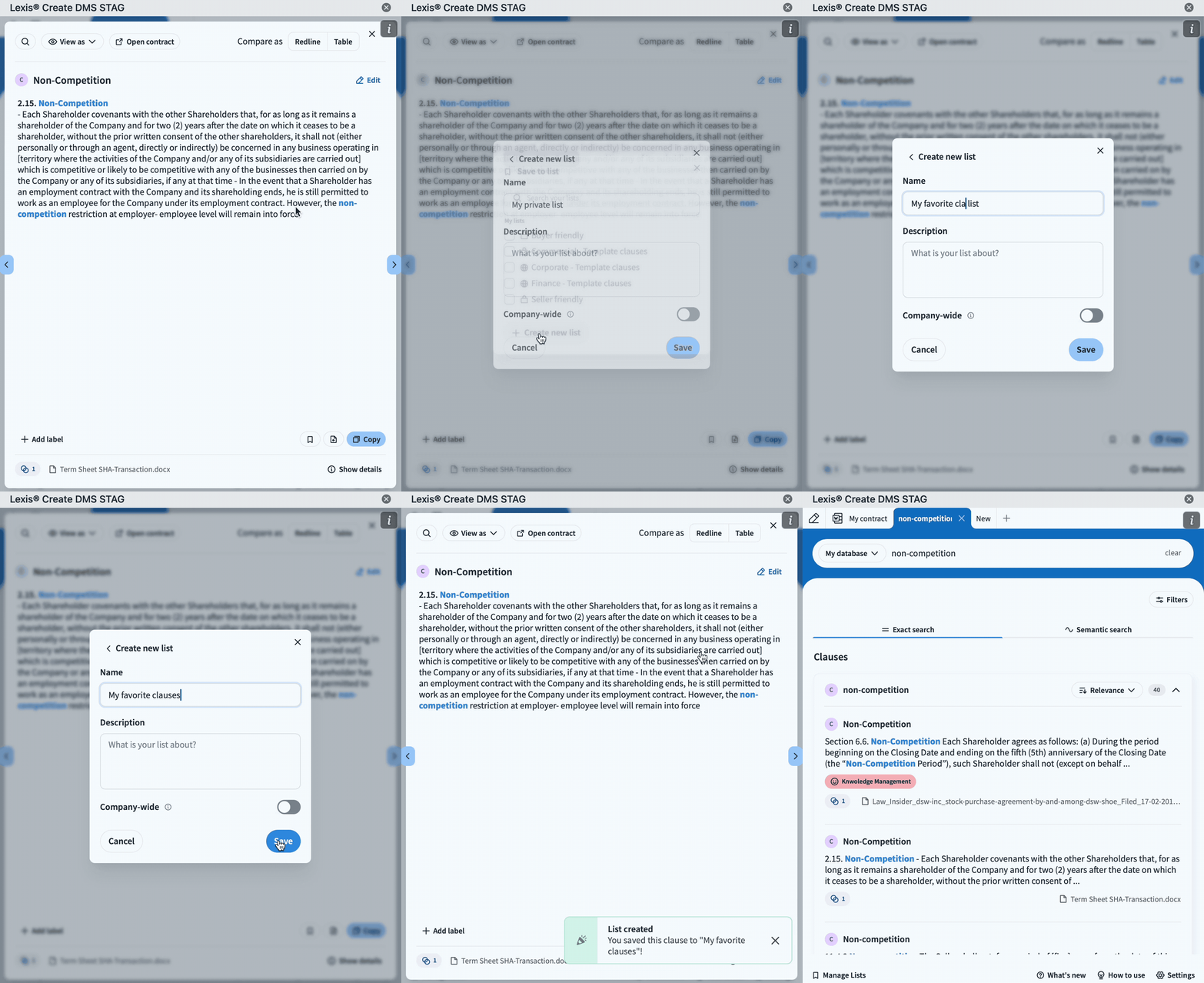
1. Create a list
- Go to Manage lists in the bottom left corner
- Click on +Create list
- Enter the name of the list, a short description, and whether the list is private or company-wide
2. Add clauses/definitions to the list
- Search for a clause/definition (more information here)
- Click on the little flag that says 'Save to list'
- Click “Save to list”
- Hover over the list you want to save the clause/definition to and click “save” (in this screen you can also "Unsave" your clause/definition from other lists)
How to edit a list
1. Remove clauses/definitions from lists
-
- Go to Manage lists in the bottom left corner
-
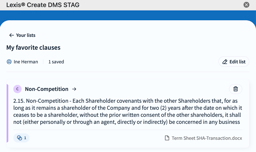
- Click on the list you want to edit
- Delete the clause/definition via the trashcan icon
2. Edit/delete entire lists
- Go to Manage lists in the bottom left corner
- Choose the list you want to edit and click on the Edit list button
- The following options are possible:
- Edit the name
- Change the description
- Change whether the list is private or company-wide
- Delete the entire list. (A deleted list will not be visible in Lexis® Create DMS anymore but the clauses or definitions it contained will remain in Lexis® Create DMS)